
If you're looking for a stream deck alternative, the short answer is yes, plenty of great options exist, and many of them won't cost you a penny. You could use an app like Touch Portal to transform your phone into a powerful control surface, or invest in dedicated hardware like the Loupedeck Live for that satisfying tactile control without the Elgato price tag.
Why a Control Surface Is Non-Negotiable for Webcam Creators
Let's be real: streaming, especially in the adult space, is a high-wire act. You're not just the performer; you're the producer, director, and your own tech support, often all at once. Trying to juggle OBS scenes, react to a sudden token bomb, manage private chat requests, and trigger sound effects—all while maintaining eye contact and staying in character—is mentally exhausting.
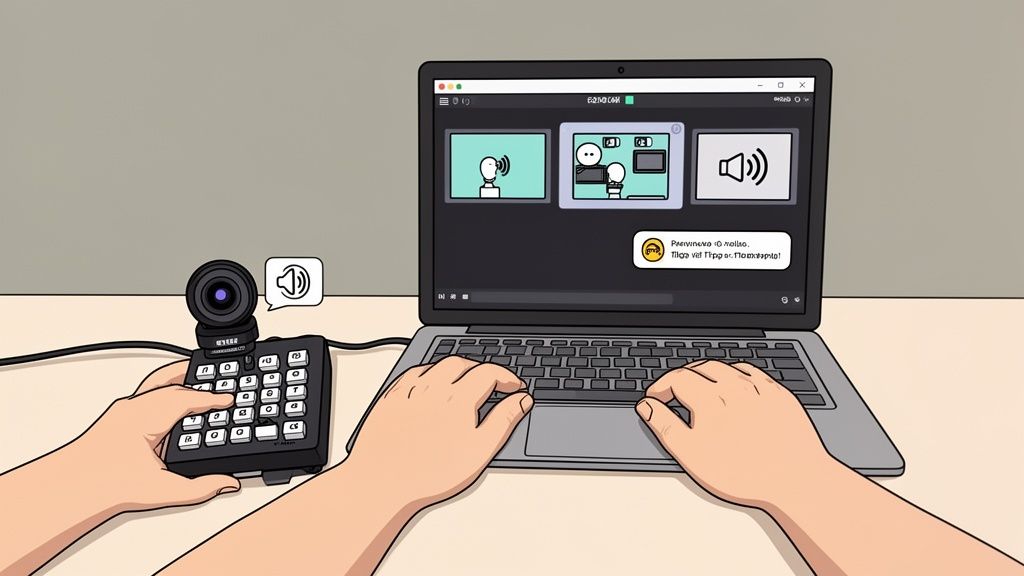
This is precisely where a dedicated control surface stops being a gadget and becomes a core part of your toolkit. It’s not about having flashy buttons; it’s about reducing your cognitive load so you can focus on the performance.
Instant Control Means a Better Performance
Every moment you spend fumbling with a mouse to find the right window is a moment you're disconnected from your audience. Those awkward pauses while you switch from a public free-chat view to a "private show" scene can kill the mood and, frankly, cost you money.
A good control surface puts your entire broadcast at your fingertips.
- One-Tap Actions: Instantly switch cameras, trigger overlays for tip goals, or play a specific sound effect with a single press.
- Reduced On-Screen Clutter: Keep your main monitor clean and focused on audience interaction, not a chaotic mess of open windows. This also boosts your privacy by preventing you from accidentally sharing personal information on screen.
- Seamless Transitions: Move between different parts of your stream smoothly, creating a much more professional and engaging experience that encourages viewers to stick around longer and spend more.
A control surface is the difference between looking like a pro who's in complete command and someone who seems to be just figuring it out live. That confidence translates directly into viewer trust and higher earnings.
A Practical Choice for UK Creators
For UK-based webcam models, budget-friendly software can be a real game-changer. Apps like Touch Portal or Deckboard offer free, open-source alternatives that integrate perfectly with OBS Studio. They give you one-tap control over scenes, overlays, and tip alerts—all crucial when you're juggling live chats with hundreds of viewers at once.
Ultimately, whether you choose a physical device or a mobile app, the goal is the same: to make the technology feel invisible. This frees you up to focus on what actually matters—building a real connection with your audience. For a deeper dive into optimising your space, check out our guides on building the ideal webcam setup.
Hardware Stream Deck Alternatives Worth Your Investment
If you love the satisfying feedback of a physical button but the Elgato price tag makes you wince, you're in luck. There are some fantastic hardware options out there that give you that tactile control without breaking the bank. We’re going to look beyond the basic feature list and talk about what actually matters when you're deep into a long, demanding stream.
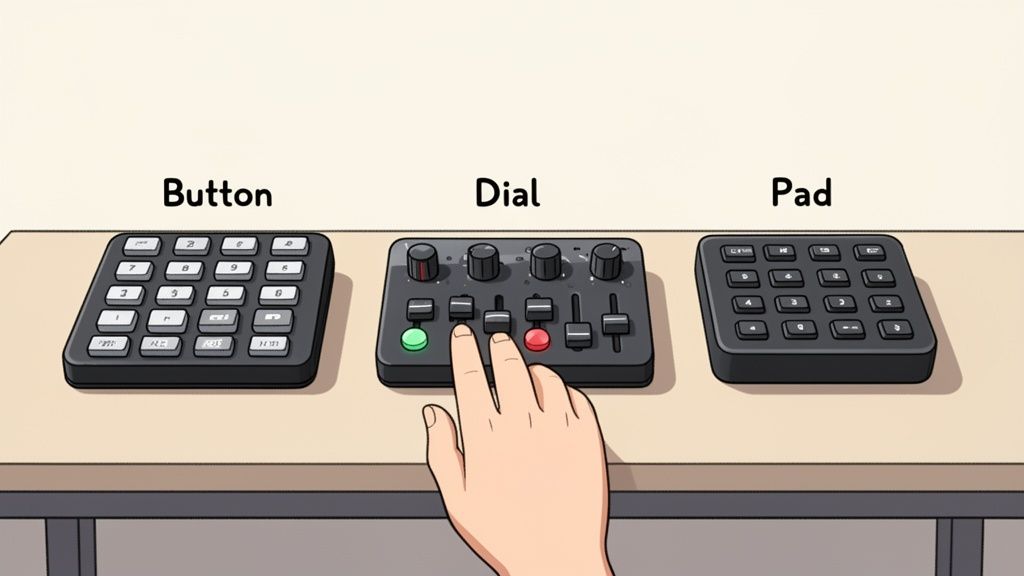
The true test of any stream deck alternative isn't how it looks on your desk, but how it feels and functions four hours into a session. Is the software a dream to set up, or is it a frustrating mess? Let's break down the main contenders.
Loupedeck Live: The Tactile Powerhouse
First up is the Loupedeck Live. It’s often touted as the most direct competitor to the Stream Deck, but it approaches control from a completely different angle. While Elgato is all about the buttons, Loupedeck combines customisable touch buttons with physical, endlessly rotating dials.
This is a genuine game-changer for anyone who’s constantly tweaking audio levels, adjusting lighting brightness, or even fine-tuning camera zoom. Instead of repeatedly mashing a button to nudge your key light's intensity, you can simply twist a dial for smooth, precise control. It just feels more natural and stops you from breaking the flow of your performance.
Imagine this: a viewer tips for a specific lighting change. With a dial, you can make that adjustment gracefully in real-time. This level of finesse feels premium and adds a layer of professionalism that your audience will definitely notice. The build quality is solid, and its software integrates deeply with OBS, Streamlabs, and even creative tools like Adobe Premiere Pro if you edit your content offline.
Razer Stream Controller: A Familiar Face with a Twist
If the Loupedeck looks familiar, there's a good reason. Razer partnered with them to create their own version, the Razer Stream Controller. It shares the same DNA: a mix of customisable touch buttons, physical dials, and programmable side buttons. The real difference comes down to the software and ecosystem.
Razer’s Synapse software is a giant in the gaming world, bringing its powerful macro capabilities and Chroma RGB lighting integration to the party. If you're already using Razer peripherals like a keyboard or mouse, this controller will slide right into your setup, syncing lighting effects and profiles seamlessly.
It's a brilliant choice for creators who want that dial-based control but are already invested in the Razer ecosystem. The workflow is practically identical to the Loupedeck Live, making it a seriously powerful tool for managing audio, lighting, and scene transitions on the fly.
The core advantage of devices like the Loupedeck and Razer controller isn't just about replacing mouse clicks. It's about introducing a new, more natural way to interact with your stream. Dials and knobs provide a level of analogue control that simple buttons can't match.
Hardware Alternatives at a Glance
To help make sense of the main players, here’s a quick comparison table focusing on what truly matters for a webcam creator's workflow.
| Device | Typical UK Price | Key Feature for Creators | Best For | Potential Drawback |
|---|---|---|---|---|
| Loupedeck Live | £180 – £220 | Six tactile analogue dials for precise, smooth control over audio and lighting. | Creators who need fine-tuned adjustments and a premium feel. | Higher price point than button-only pads. |
| Razer Stream Controller | £200 – £250 | Deep integration with Razer Synapse and Chroma RGB for a unified setup. | Streamers already invested in the Razer hardware ecosystem. | Software can be resource-heavy for some setups. |
| VSDinside Stream Dock M18 | £50 – £80 | A budget-friendly mix of 15 LCD keys and 3 physical tactile buttons. | New creators wanting physical keys without the high cost. | Newer brand, so long-term support is less established. |
| Monogram Creative Console | £400+ (Modular) | Fully modular system you can build yourself with sliders, dials, and keys. | Established professionals needing a completely custom control surface. | Very expensive and requires significant setup time. |
The market for streaming equipment in the UK is growing fast, with great solutions at every price point. Devices like the Loupedeck are particularly effective. In fact, some streamers report 25-40% faster scene switches with these alternatives, which often undercut the main competition on price while offering ergonomic knobs perfect for tweaking volume and lighting during long sessions.
Ditch the Hardware: Free Software and Mobile App Alternatives
If the thought of dropping a couple of hundred quid on a dedicated hardware controller makes you wince, you're not alone. For creators just getting their start, every penny counts. This is where software and mobile apps shine, turning the smartphone or tablet you already own into a surprisingly capable control surface.

But this approach isn’t just about saving cash. It’s also about portability and a clever little security trick. When you use your phone as a command centre, you create a kind of digital ‘air gap’ between your controls and your main streaming PC. This significantly reduces the risk of a dodgy link or malware from your browser messing with your stream – an incredibly important consideration for anyone in the adult content space.
Touch Portal: The Customisation King
First up is Touch Portal, and it's a fan favourite for good reason. It’s an absolute powerhouse, letting you build complex, multi-step macros and completely overhaul the look and feel of your button grid. Think of it as a blank canvas. You can design unique pages for every scenario – one for your public streams, another for private shows, and a third just for managing your social media.
The free version offers more than enough to get you started, with a decent grid size and all the basic integrations you'll need. If you want to go all out, the Pro version is a one-time purchase that unlocks unlimited pages and much deeper plugin support. Getting it running is dead simple:
- Install the desktop app on your main streaming PC.
- Download the mobile app onto your phone or tablet.
- Check both devices are on the same Wi-Fi network.
- Connect them, and you're ready to start dragging and dropping actions onto your grid.
Its real strength, though, lies in the community-driven plugins. You can find integrations for pretty much anything, from OBS and Streamlabs to voice changers and smart lighting. For many, Touch Portal isn't just a free stream deck alternative; it's a better one.
Deckboard: The Simple and Sleek Option
If Touch Portal's endless customisation feels a bit overwhelming, Deckboard offers a much more straightforward experience. Its interface is clean and intuitive, which makes setting up basic controls for OBS or running simple computer macros an absolute breeze. It’s the perfect choice if you just need to switch scenes, mute your mic, or trigger a sound effect without a steep learning curve.
Like Touch Portal, it works over your local Wi-Fi. The free version gives you a solid set of features, and a small one-time payment unlocks more buttons and customisation options. It’s a fantastic, no-fuss solution for creators who just want to get up and running in minutes.
A key trade-off with any Wi-Fi based app is latency. A rock-solid home network is non-negotiable. If your connection is flaky, you might notice a slight delay between tapping a button and the action happening on-screen, which can really throw off your timing during a live session.
Elgato Stream Deck Mobile
It might seem strange to list an Elgato product as an alternative to itself, but their mobile app is a completely different beast. Stream Deck Mobile gives you the same polished software experience as the hardware, but on your phone. It’s the perfect way to try out the Elgato ecosystem without forking out for the physical device.
The catch? It’s a subscription. While there’s a trial, you'll have to pay a monthly or annual fee to keep using it. This makes it a less attractive long-term free option compared to Touch Portal or Deckboard, but it’s an excellent choice if you’re already comfortable with the Stream Deck interface.
The portability is a huge plus, too. UK webcam creators are increasingly turning to solutions like Elgato Stream Deck Mobile to cut costs and gain flexibility, a smart move when mobile hardware already accounts for 55% of global game streaming. You can learn more about streaming hardware trends here.
At the end of the day, these apps make professional stream control accessible to everyone. They prove you don't need expensive kit to create a slick, seamless broadcast. You just need the phone that's probably already in your pocket.
Master Your Entire Production with Bitfocus Companion
If a Stream Deck is a handy multi-tool, think of Bitfocus Companion as the entire professional workshop. This isn't just another app for flipping between scenes in OBS; it's a seriously powerful, open-source automation engine built for the complex demands of live production. For any creator with a technical streak, it’s the ultimate control surface, turning one button press into a perfectly timed cascade of actions across all your gear.
Put it this way: a standard app links one button to one action. Companion, on the other hand, lets you build complex macros—entire sequences of commands that trigger multiple devices and applications all at once. It’s the difference between flicking a light switch and hitting a single button that dims the house lights, draws the curtains, and fires up the projector.
More Than Just Scene Switching
Companion's true strength lies in its massive library of integrations. It’s designed to talk to professional lighting desks, audio mixers, video switchers, and presentation software, bringing everything together under one roof.
For a webcam creator, this opens up a world of production quality that was once the exclusive domain of broadcast studios.
- Total Atmosphere Control: Imagine a button labelled "Private Show". Press it, and Companion instantly dims your Philips Hue lights to a specific colour, tells OBS to switch to a more intimate camera angle, and mutes your public-facing microphone.
- Synchronised Audio Cues: You could have another button that not only plays a sound effect for a big tip but also momentarily dips your background music, ensuring the alert is heard loud and clear.
- Use Any Hardware You Want: Companion is wonderfully agnostic. It doesn't mind whether you're pressing buttons on a Stream Deck, a Loupedeck, a generic MIDI controller, or even just tapping on a tablet in a web browser. You can build a custom control surface that perfectly matches your setup and budget.
Companion is for the creator who treats their stream like a full-scale production. It does ask you to get your hands dirty with things like network settings and IP addresses, but the reward is a degree of automation that no other single piece of software can touch.
A Steeper Climb, but a Better View
Let's be honest, Companion has a much steeper learning curve than an app like Touch Portal. It expects a bit of technical know-how, and you'll find yourself tinkering with module configurations and network protocols that might seem daunting at first. The good news is the community support, especially on places like Discord, is absolutely fantastic.
Being open-source is also a major plus for creators who don't want to be locked into one company's ecosystem. This is a big deal in the UK, where pricey hardware can be a real barrier. Out of the global £430 million Stream Deck market, UK adoption is only around 5-7%, largely due to cost. This has encouraged about 40% of streamers to explore open-source solutions like Companion, which also supports modern codecs like AV1 for top-notch, low-latency streams. You can learn more about these streaming trends and statistics.
Ultimately, Companion isn't just a replacement for a Stream Deck; it's the central nervous system for your whole streaming operation. If your ambitions stretch beyond basic scene changes and you dream of building a truly professional, automated broadcast, then putting in the time to learn Bitfocus Companion will completely change your game.
Choosing the Right Alternative for Your Streaming Style
Alright, we’ve looked at hardware, software, and the incredible power of Bitfocus Companion. Now for the important bit: figuring out which stream deck alternative is the right one for you.
There’s no single "best" answer here. The ideal choice comes down to your budget, how tech-savvy you are, and what your streaming sessions actually demand. It’s all about trade-offs. Are you willing to swap money for convenience? Or perhaps invest some time to unlock serious power?
Let's break it down with some real-world scenarios to help you decide.
The New Creator on a Tight Budget
If you're just starting out, the goal is simple: get a professional-looking stream up and running without breaking the bank. Your priority is solid functionality, not flashy hardware.
- Your Best Bet: A mobile app like Touch Portal or Deckboard.
- Why it Works: You already own the main piece of kit—your phone or an old tablet. These apps are often free to start, with a cheap one-time Pro upgrade unlocking 90% of the features a physical Stream Deck offers for next to nothing. They handle all the essentials perfectly, from switching scenes in OBS and muting your mic to triggering basic alerts.
- The Trade-Off: Your workflow is entirely at the mercy of your Wi-Fi. A patchy connection can create noticeable lag, which is the last thing you want in the middle of a session. It also means you have one more device to keep charged and ready to go.
The Established Creator Going Pro
You’ve built an audience, your income is steady, and you’re ready to really polish your production quality. The occasional lag from a mobile app is starting to grate, and you want the reliable, satisfying feel of physical buttons.
- Your Best Bet: A dedicated hardware device like the Loupedeck Live.
- Why it Works: That mix of tactile dials and customisable buttons is a genuine game-changer for live adjustments. You can smoothly fade your lights, tweak audio levels, or zoom a camera with a satisfying twist of a knob. It feels far more intuitive and professional than just tapping on a glass screen. Think of it as a direct investment in your workflow and, ultimately, the viewer's experience.
- The Trade-Off: The price tag. These devices are an investment. While they can be cheaper than Elgato's top-tier models, they still represent a significant purchase. You're paying for that premium build quality, rock-solid reliability, and that all-important tactile feel.
This flowchart gives you a peek under the bonnet of how a tool like Bitfocus Companion processes commands. It visualises the journey from a simple button press to controlling and automating a whole range of devices in your setup.
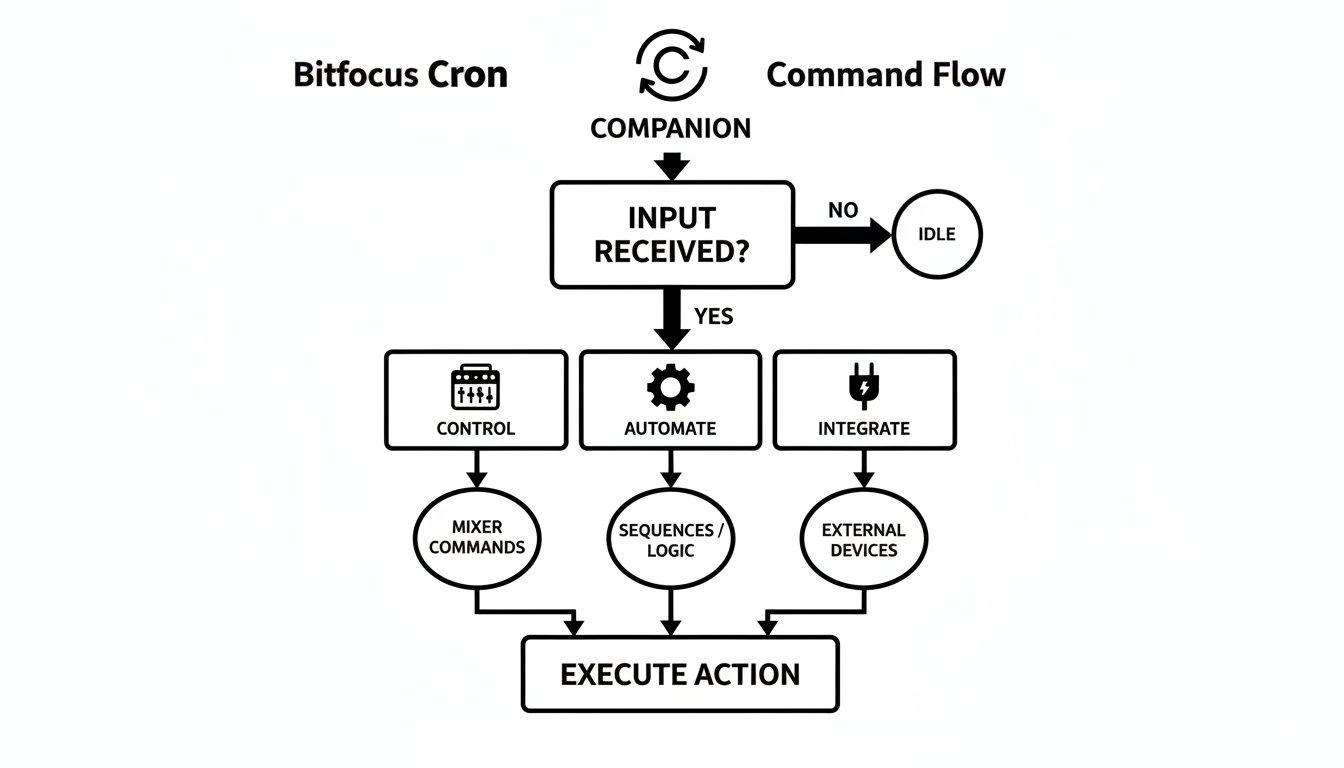
This really highlights how one single input can kick off a complex chain of events—that’s the core strength of this kind of advanced automation software.
The Technical Power User
You’re running a complex multi-camera show, you love to tinker, and the idea of making all your tech work together with a single button press genuinely excites you. You don’t just broadcast; you run a full-on production.
Your Best Bet: Bitfocus Companion paired with a simple hardware controller (even a cheap MIDI pad will do).
Why it Works: Companion becomes the central nervous system for your entire studio. It can control your lights, audio mixer, OBS, and pretty much anything else, all at once. The hardware just becomes the trigger; Companion is the brain. This setup gives you a level of power and automation that no other single solution can come close to. Your only real limit is your own imagination.
The Trade-Off: Time and a pretty steep learning curve. You’ll need to get comfortable with IP addresses and be prepared to spend a good few hours configuring, testing, and troubleshooting. It's definitely not a plug-and-play solution, but the payoff is absolute, total control.
No matter which path you take, remember that the goal is to make your technology disappear. It should work for you, letting you focus on your performance and connecting with your audience. For more on the tech that helps a stream shine, have a look at our guide on finding the best camera for live streaming.
Quick Questions Answered
Stepping away from the default choice always sparks a few questions. If you're weighing up your options against an Elgato Stream Deck, you're not alone. Here are the answers to the most common queries I hear from creators exploring the alternatives.
Is It Really Safe to Use My Phone as a Control Surface?
It is, and in some respects, it’s even safer than installing more software on your main streaming PC. Apps like Touch Portal and Deckboard work by connecting over your local Wi-Fi. This means your control signals never actually touch the public internet.
This setup creates a nifty little "air gap" between your control device (your phone) and your streaming rig. If a dodgy link gets clicked in chat, it's far more difficult for anything malicious to hop from your PC over to your phone. As long as you've secured your home Wi-Fi with a decent password (WPA2 or WPA3), you're golden.
Will a Mobile App Kill My Phone's Battery?
Oh, absolutely. Keeping your screen lit up for a three-hour stream while it’s constantly pinging your network is a surefire way to drain your battery. The simple solution? Keep it plugged in.
Most streamers I know who go the mobile route just dedicate an old phone or tablet to the job. It lives on their desk, permanently connected to a charger. This not only saves your main phone's battery but also stops personal notifications or calls from popping up mid-stream.
Is There a Noticeable Lag with Wi-Fi Apps?
This is the classic trade-off. On a good day, with a solid modern router and not much network traffic, any delay is so tiny you'll never notice it—we're talking milliseconds. You tap the button, and the action feels instant.
But if your Wi-Fi signal is weak, you're streaming from the other side of the house, or your flatmate decides to download their entire game library, you might feel a slight lag. For changing scenes in OBS, it's rarely a problem. For hitting a perfectly timed sound effect, that split-second delay can be a real pain. A wired hardware device will always have the edge on speed and reliability.
The Bottom Line: For 95% of streamers, the flexibility and low cost of a Wi-Fi app massively outweigh the small risk of occasional lag. Just give your network a quick test before you rely on it for a major broadcast.
Can These Alternatives Control More Than Just OBS?
You bet. This is where many of these tools really come into their own. While controlling streaming software like OBS Studio or Streamlabs is their bread and butter, most can be configured to do just about anything on your computer.
Think bigger:
- Total Audio Command: Mute your mic in Discord, tweak your game volume, and skip tracks on Spotify without ever leaving your game.
- Workflow Shortcuts: Launch your favourite editing software, paste canned responses into chat, or trigger multi-key macros in Premiere Pro with one tap.
- Smart Home Integration: With the right plugins, you can control your Philips Hue lights, changing the whole vibe of your room live on stream.
And for the power users, something like Bitfocus Companion takes this to a whole other level. You can program a single button to fire off a chain of commands across different apps and hardware all at once.
Do I Need a Computer Science Degree to Set This Up?
Not at all. The popular options are designed for creators, not coders. Setting up Touch Portal or a piece of hardware like the Loupedeck Live is surprisingly straightforward. It's mostly a drag-and-drop affair: you pick an action ("Switch Scene"), assign it to a button, and you're off.
The learning curve only gets steep when you venture into the really advanced stuff like Companion. But for getting a simple grid of stream commands ready to go, you’re looking at less than an hour of work. If you can follow a YouTube tutorial, you can set up a stream deck alternative, no problem.