
Let's ditch the jargon for a moment. Think of OBS (Open Broadcaster Software) as a free TV production studio that sits right on your computer. Instead of just pointing your webcam at yourself and hoping for the best, OBS puts you firmly in the director's chair, giving you complete control over what your audience sees. It's the secret sauce that turns a basic stream into a polished, professional broadcast.
So What Is OBS and Why Do Creators Use It?
Imagine your webcam is just a single camera. On its own, that’s all your viewers see—a static shot. But with OBS, you’re suddenly in a control room, able to mix in all sorts of other elements to create a much more dynamic and branded show. It's the difference between a one-note performance and a captivating, interactive experience that keeps viewers hooked and wanting to see more.
For anyone creating content online, especially on webcam platforms, this tool is an absolute game-changer. It lets you:
- Add Overlays: You can pop your tip menu, social media handles, or special goals right onto the screen. No more typing it out in chat every five minutes.
- Manage Multiple Sources: Effortlessly switch between different cameras, play pre-recorded videos, or share images without frantically clicking through browser tabs.
- Protect Your Content: Add a subtle watermark to your stream, which makes it a lot harder for someone to steal your content and re-upload it without giving you credit.
- Boost Your Privacy: Crop your camera feed with precision to hide any personal items in your room. You can even set up a "panic scene" to instantly switch to a neutral screen if you ever need to.
Essentially, getting to grips with what OBS is unlocks a whole new level of professionalism and security. It creates a vital buffer between you and the webcam site, putting all the control back where it belongs: with you. To get the full picture, it's helpful to understand how webcam sites work and see exactly how a tool like OBS fits into a successful creator's toolkit.
The OBS interface might look a little intimidating at first, but it's logically laid out.
This screen is your command centre. It gives you a live preview of your stream and easy access to all the different elements you can bring into your broadcast.
At its core, OBS transforms your stream from a simple video feed into a fully customisable broadcast. It's not just about looking better; it's about having total command over your digital space, your privacy, and how you present yourself to your audience.
This level of control is precisely why OBS is the industry standard. It's a powerful, open-source application that's completely free to use, yet it gives you the same kind of capabilities as a major production studio.
To give you a clearer idea, here’s a quick summary of what OBS brings to the table for a creator.
OBS at a Glance: What It Does for You
| Feature | What It Means for Your Stream |
|---|---|
| Scenes & Sources | Create different layouts (e.g., a "Just Chatting" scene, a "Goals" scene) and switch between them seamlessly. |
| Overlays & Graphics | Add your branding, tip menus, and social media handles directly onto your video. |
| Virtual Camera | Use your polished OBS output as a webcam source on any platform, from Skype to webcam sites. |
| Privacy Controls | Crop your video feed, blur backgrounds, or have an emergency "Be Right Back" screen ready to go. |
| Watermarking | Protect your content by adding a subtle, semi-transparent logo or username to your stream. |
From adding fun alerts that pop up when you get a new follower to setting up entirely different visual layouts for various parts of your show, OBS gives you the tools to build a more engaging and profitable stream.
Understanding Scenes and Sources
To really get to grips with OBS, you first need to understand its two most fundamental parts: Scenes and Sources. The best way to think about it is like you're putting on a play.
Your Scene is the entire stage set-up for a particular moment in your show. The Sources are all the individual actors, props, and backdrops on that stage. You can prepare several different stage set-ups in advance and switch between them instantly.
Building Your Stream with Scenes
A Scene is essentially a complete visual layout for your broadcast. It's a pre-arranged canvas holding all the different bits and pieces you want to show your audience at any given moment.
Just setting up a few basic scenes for different segments of your stream is what elevates a broadcast from a simple, raw webcam feed to something that looks polished and professional.
For instance, a typical creator might have a handful of go-to scenes to switch between:
- Starting Soon Scene: This is what your audience sees before you officially begin. It's perfect for a countdown timer, links to your socials, and a bit of music to get people hyped up.
- Main Show Scene: The heart of your stream. This is your primary layout, usually featuring your main webcam, your microphone audio, and perhaps an overlay with your tip menu or current goals.
- Be Right Back (BRB) Scene: A simple screen you can flick to if you need to step away for a minute. It looks so much better than leaving an empty chair on camera.
- Panic Scene: This one is a non-negotiable safety tool. It's a neutral, pre-made screen (like a simple "Stream Offline" graphic) that you can switch to in a heartbeat if something goes wrong, buying you time to sort things out without abruptly ending the stream.
Having these scenes ready to go lets you direct the entire experience for your viewers. For even slicker control, many streamers use a physical keypad that works as a Stream Deck alternative to change scenes with a single press of a button.
Populating Scenes with Sources
So, if scenes are the containers, Sources are the actual content you fill them with. A source is any single element you want to show or capture. You can pile as many sources as you like into a single scene, arranging them exactly how you see fit—resizing, cropping, and layering them to create your unique look.
This diagram gives you a clear picture of how different sources all feed into your main OBS setup.
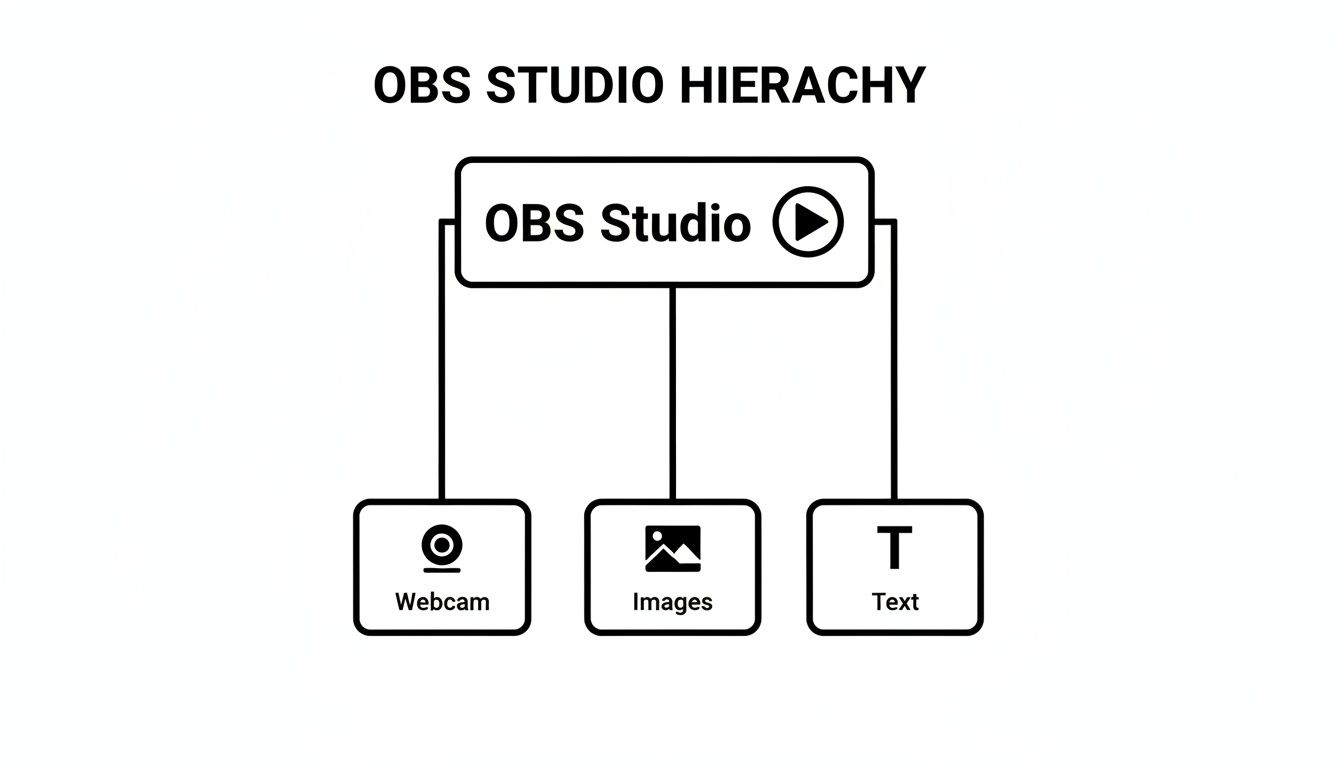
The idea is simple but powerful: OBS acts as your central command desk, letting you mix all these different media elements into one seamless broadcast.
Key Takeaway: You're not just streaming a webcam feed. You are broadcasting a Scene, which is a collection of Sources you have carefully arranged. Grasping this distinction is the key to unlocking the real power of OBS.
Some of the most common sources webcam creators use include:
- Video Capture Device: Your main camera.
- Audio Input Capture: Your microphone.
- Image: A static picture, great for a tip menu, logo, or a watermark.
- Browser Source: This lets you pull in web-based elements, like those slick, animated tip alerts from other services.
- Text: Allows you to add your own custom text for announcements or goals right onto your stream.
By mixing and matching these sources within your different scenes, you gain total creative freedom. Your "Main Show" scene can have your webcam and tip menu, while your "BRB" scene might just be a background image with some text. Getting comfortable with this simple relationship is the first and most crucial step towards creating a stream that's not only professional but also secure.
OBS Studio Versus Other Streaming Apps
When you start digging into streaming software, you’ll quickly find that OBS Studio isn't the only game in town. Names like Streamlabs and Twitch Studio will pop up, and frankly, they often look a lot more inviting at first glance. It's helpful to know that many of these apps are actually built using the original, open-source OBS code—think of them as the base model of a car that's been given a flashy body kit and some pre-installed gadgets.
So, what's the real difference, and why do so many experienced creators still swear by the original? It all comes down to a classic trade-off: raw power and control versus out-of-the-box convenience.
The Original Workhorse: OBS Studio
OBS Studio is the undisputed veteran of the streaming world. It’s completely free, open-source, and incredibly powerful. Because it doesn't come bloated with all sorts of flashy extras you might not need, it's generally much lighter on your computer's resources. This is a huge deal for webcam creators, where a smooth, stable stream is absolutely critical. A stuttering broadcast is a fast way to lose your audience and your income.
The true magic of OBS Studio lies in its near-infinite customisability. With a massive library of community-made plugins, you can get it to do just about anything you can dream up.
- Lean Performance: It uses less of your CPU and RAM, which means more processing power is available for your camera feed and anything else you have running.
- Total Control: You have direct, granular control over every single setting. Nothing is simplified or hidden away from you.
- A World of Plugins: Need to blur a specific part of your room or add a custom visual effect? There’s almost certainly a plugin for that.
- No Paywalls: Every single feature is free. Forever. There are no "Pro" versions or subscriptions needed to unlock its full potential.
The flip side? It can feel a bit daunting when you first open it. The interface is built for function, not for looks, and you have to set up things like tip alerts or graphic overlays yourself by adding them as browser sources.
The User-Friendly Alternatives
Apps like Streamlabs take the core engine of OBS Studio and wrap it in a much slicker, beginner-friendly package. They come with features already built-in that you would normally need separate plugins or services for in OBS Studio.
Think of it this way: OBS Studio is like a powerful manual car. A skilled driver can push it to its absolute limits, but you need to know how to work the clutch. Streamlabs and similar apps are more like an automatic car with a built-in satnav and a great sound system—much easier to get going, but you give up some of that direct control and peak performance.
These alternatives are designed to get you live, fast:
- Integrated Themes & Alerts: They usually have libraries of pre-made visual themes and built-in systems for displaying follower and tip alerts on screen. This can save you a ton of setup time.
- Simplified Interface: The settings are often streamlined and presented in a less technical way, making it less overwhelming for new streamers.
This convenience does come with a few trade-offs, though. All those integrated features can make the software more demanding on your PC, sometimes leading to performance issues on mid-range computers. Plus, many of these apps run on a "freemium" model, locking the best themes and some advanced features behind a monthly subscription.
For a webcam creator focused on stability, privacy, and performance, the raw, unburdened power of OBS Studio often wins the day.
Using OBS for Creator Privacy and Content Control
For webcam and adult content creators, getting to grips with what OBS is about is much more than just learning a few production tricks. It’s one of the most powerful tools you can have for security and control. When you stream directly from your browser on a platform's website, you’re effectively handing that site raw, unfiltered access to your camera and mic. OBS flips that script entirely.
By using OBS, you place a robust buffer between your camera and the platform. You’re no longer sending them your raw feed; you’re sending them a carefully curated output from OBS. This one change puts you firmly back in control, letting you decide precisely what your audience—and the platform itself—gets to see and hear.
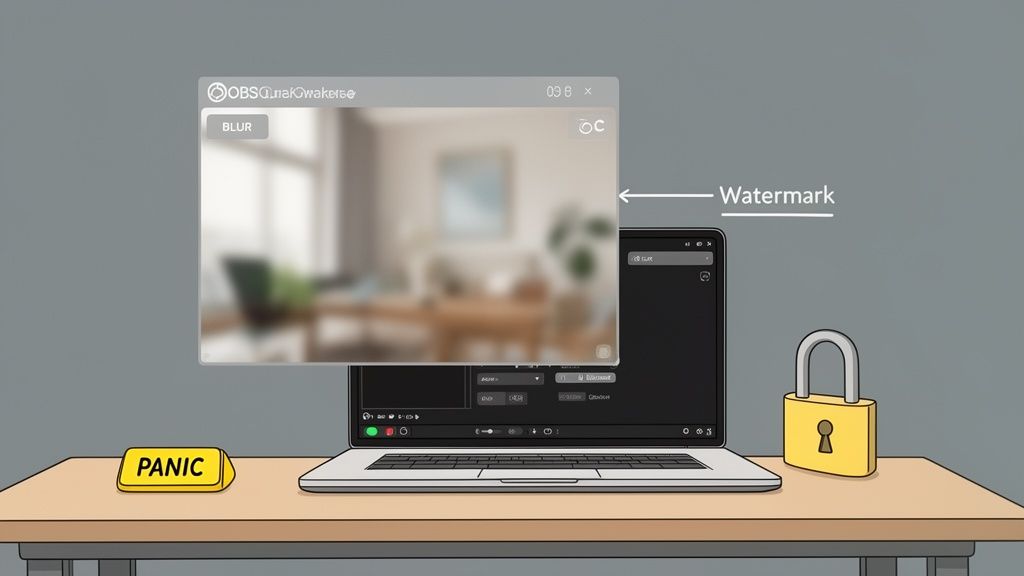
Mastering this setup is fundamental to creating a safe, professional environment that protects you, your space, and your income. It's really a non-negotiable skill for anyone serious about building a sustainable career in this industry.
Taking Charge of Your Digital Space
The true power of OBS for privacy comes down to its precision. It gives you a level of granular control over your video feed that web-based interfaces just can't match. This isn’t just about looking good; it's about your operational security.
For instance, you can use OBS to meticulously manage exactly what your audience sees in your room. A stray letter with your address visible or a family photo accidentally caught in the frame can be a major privacy breach. OBS lets you crop your webcam feed with pixel-perfect accuracy, ensuring only the part of the room you want to show ever gets broadcast.
Think of OBS as your digital bouncer. It stands between your private space and the public internet, making sure nothing gets through that you haven't personally approved. It filters, crops, and controls the feed before it ever leaves your computer.
This control extends to more advanced techniques that are surprisingly simple to set up.
- Selective Blurring: With freely available plugins, you can draw a box around a specific part of your room—like a doorway or a window—and apply a permanent blur. This means that even if someone unexpectedly walks past in the background, your privacy remains intact.
- Virtual Greenscreens: Even if you don’t own a physical green screen, AI-powered plugins can remove your background entirely. You can replace it with a neutral image or a solid colour, which is a fantastic way to completely hide your personal environment.
These aren't complicated technical feats. They're practical, everyday tools for maintaining that critical boundary between your personal life and your professional persona.
Creating Your Safety Net
Beyond managing what's in your background, OBS acts as your ultimate safety net during a live stream. Things can and do go wrong, from unexpected interruptions to dealing with a difficult user. Having scenes pre-configured and ready to go gives you instant options to handle any situation gracefully.
The most vital of these is the "Panic Scene." This is a simple, non-negotiable scene you should create from day one. It could just be a graphic with "Be Right Back" or "Stream Paused" written on it. With a single key press—especially when paired with a Stream Deck or a similar tool—you can instantly switch to this neutral screen, cutting both your camera and microphone feed. It buys you a moment to handle whatever is happening off-camera without abruptly ending your broadcast or revealing anything you don't want to.
On a similar note, adding a discreet watermark with your username to a corner of your screen is a simple but effective way to deter content theft. While it won't stop the most determined thieves, it makes it much harder for casual pirates to rip and re-upload your streams as their own, helping you protect your content and your income.
Key OBS Settings for a Flawless Webcam Stream
Opening the OBS settings menu for the first time can feel like you’ve accidentally stumbled into the cockpit of a 747. You’re bombarded with dropdowns, sliders, and acronyms that don’t make a lick of sense.
But here’s the good news: for what we’re doing on webcam platforms, you can safely ignore about 95% of it. We’re not trying to push 4K gameplay to a million viewers on Twitch; our goal is a crisp, clean, and reliable stream that looks professional.
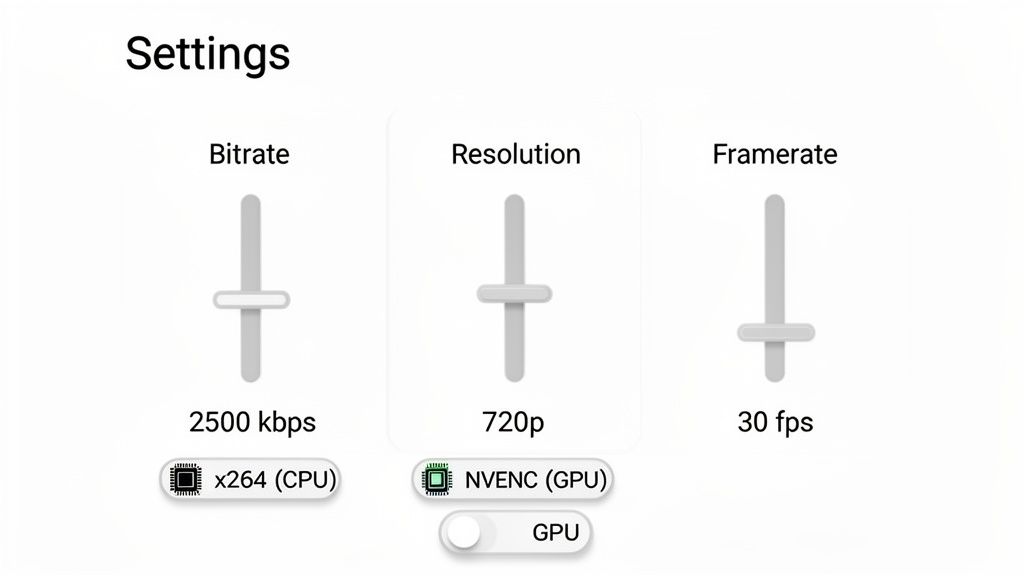
To do that, you only need to master the big three: Bitrate, Resolution, and Framerate. Get these right, and you'll be miles ahead of the competition.
The Big Three, Explained Simply
Let's break these down. Imagine your stream is a flip-book you're sending to your viewers through your internet connection.
Resolution is the size of each page in the flip-book. Common sizes are 1080p (1920×1080 pixels) or 720p (1280×720). Bigger isn't always better here, as a larger page needs more internet muscle to send.
Framerate is how many pages you flip per second. This is measured in FPS (Frames Per Second). For a natural, smooth look, 30fps is the gold standard. Anything higher, like 60fps, is overkill for webcam shows and just puts needless strain on your computer.
Bitrate is the speed and power you use to send that flip-book. It’s measured in kilobits per second (kbps). If your bitrate is too low, those beautiful 1080p pages will arrive looking like a blurry, pixelated mess. If it's too high, your stream might constantly freeze and buffer for viewers.
Of course, none of this matters without a decent camera in the first place. A great camera is the foundation, and these settings are how you make it shine. If you're looking to upgrade your hardware, our guide to the best camera for live streaming is the perfect place to start.
A flawless stream is a balancing act. You're searching for the sweet spot where your video quality is fantastic, but the stream is also perfectly stable for everyone watching. Trying to force 1080p at 60fps with a low bitrate is a surefire recipe for a blocky, unwatchable disaster.
Choosing Your Engine: x264 vs NVENC
The final piece of this puzzle is the encoder. Think of it as the engine in your PC that does all the heavy lifting, compressing your video into a streamable format. OBS mainly gives you two choices:
x264 (CPU): This option uses your computer's main brain—the processor—to do the work. It’s the universal choice that works on any machine, but it can be incredibly demanding. If your stream starts lagging or your whole computer slows to a crawl, your CPU is probably crying for help.
NVENC (GPU): If you have a modern NVIDIA graphics card (any of the GeForce GTX or RTX models), this is your secret weapon. It uses a special, dedicated chip right on the graphics card to handle all the encoding. This frees up your CPU to run everything else smoothly. The end result is almost always a better-performing stream and a happier computer.
For the vast majority of creators, NVENC is the way to go if you have it. It delivers stunning quality without bringing your PC to its knees.
Recommended OBS Settings for Webcam Platforms
Here’s a simple cheat sheet to get you started. Most webcam sites are built for stable 720p or 1080p streams and don't play well with settings that are too ambitious. These values are a fantastic starting point.
| Setting | Recommended Value | Why It Matters |
|---|---|---|
| Resolution | 1280×720 (720p) | This is the sweet spot for quality and stability. It looks sharp on any screen without needing a massive internet connection. |
| Framerate (FPS) | 30 | Delivers that smooth, true-to-life motion perfect for camming. Going higher adds no real value and just doubles the workload. |
| Bitrate | 2500 – 4000 kbps | For a 720p stream at 30fps, this range is perfect. Start at 2500 and slowly nudge it up if your internet is solid. |
| Encoder | NVENC (New) | Hands off the hard work to your graphics card for a lag-free broadcast. If you can't use it, pick x264 on the "veryfast" preset. |
Start with these settings and do a quick test. If everything runs smoothly, you’re good to go. If you see buffering, the first thing to do is lower the bitrate a little.
Mastering these few settings is the real key to a professional broadcast that your audience can count on, every single time.
Quick Answers to Common OBS Questions
Jumping into OBS for the first time usually sparks a few questions. Let's get them answered so you can get started with confidence and understand how it can really elevate your stream.
Will OBS Slow Down My Computer?
This is probably the biggest worry for new users, and it's a fair one. The short answer is: it all comes down to your computer's hardware and the settings you choose.
By itself, OBS is surprisingly light on resources. The real workhorse task is the streaming or recording process. If you're trying to push a high-definition 1080p stream with a beefy bitrate from an older laptop, you're going to see it struggle.
The trick is finding the right balance. Stick to the recommended settings for webcam work—think 720p at 30fps with a sensible bitrate—and use the correct encoder (like NVENC if you have an NVIDIA graphics card), and you'll find OBS runs smoothly even on fairly average PCs. It's all about matching quality with performance.
Is OBS Completely Free?
Yes, OBS Studio is 100% free and open-source. There are no hidden costs, no premium features hiding behind a paywall, and no subscriptions needed to unlock its full power.
You may have seen other apps that look and feel like OBS but ask for a monthly fee (like Streamlabs Prime). These are different applications that have simply built their software on top of the free OBS code. The original, feature-packed OBS Studio will always be free for anyone to use.
Do I Need OBS for Webcam Sites?
Strictly speaking, no. You can go live directly from your web browser on most platforms. The catch? You give up all control over your video feed, your privacy, and the overall quality of your broadcast.
This is where OBS becomes essential. It’s all about taking control and looking professional. OBS lets you add your own branding, set up a 'be right back' or 'panic' scene for emergencies, crop out the messy corner of your room, and add overlays like your tip menu. It's the difference between just being on camera and producing your own show.
Think of OBS as a crucial buffer between your personal space and the internet. It transforms streaming from simply flicking on a camera to broadcasting a curated, professional, and much safer production.
Can OBS Help Me Make More Money?
While OBS doesn't process payments itself, the answer is an enthusiastic yes, indirectly. A polished, well-produced stream is far more engaging and looks more professional, which almost always translates into more tips and loyal followers.
When you use OBS to clearly display your tip menu, create fun on-screen alerts for new subscribers, or design a branded look that’s uniquely yours, you're building a better viewer experience. This signals to your audience that you take your craft seriously. For UK-based creators, this is key; in 2025, the UK topped the charts in Europe for OnlyFans spending, with a staggering £531 million, showing just how massive the market is. You can dig deeper into UK creator economy trends on ofstats.net.
What Are OBS Plugins and Do I Need Them?
Plugins are brilliant little add-ons, usually made by other users, that give OBS new superpowers. They can do all sorts of things, from adding slick visual effects and transitions to blurring out specific parts of your screen for extra privacy.
You don't need any plugins to get started with the basics. But as you get more comfortable, they're fantastic tools for customising your stream and making it your own. For many creators, plugins that boost privacy and security are often the first ones they add to their toolkit.