Let's get one thing straight: fixing latency issues in VR streaming is a must. If there’s a lag, it directly torpedoes your income by turning interactive sessions into a frustrating mess for your viewers. That delay between what you do and what they see breaks the immersion, and that means fewer tips, abandoned private shows, and a reputation for being a bit rubbish.
Why VR Stream Latency Is a Business Killer
When you're building a business as a creator, especially in the very interactive world of webcam streaming, your tech isn't just a tool—it's your entire shop front. A laggy stream is like having a shop with a sticky door and dirty windows. It screams amateur, and worse, it makes it impossible for people to connect with you in the moment. That real-time interaction is exactly what they’re paying for.
Think about it: when a viewer tips to see a specific reaction or action in VR, they expect it to happen now, not five seconds later. That delay, what we nerds call latency, shatters the whole illusion of presence and intimacy that makes VR streaming so potent in the first place. It turns a dynamic, personal experience into something that feels clunky and pre-recorded.
The Financial Cost of a Split-Second Delay
High latency isn't just a small technical glitch; it's a direct leak in your earnings. Every moment of lag creates a disconnect that can make a viewer lose interest and simply click away. This is a massive problem in the UK, where the VR market is growing fast, but so are expectations for performance.
UK hardware sales actually hit £183 million in 2023. Yet, poor optimisation and performance issues—often tied to latency—were cited by 46% of UK gamers as having a major negative impact on their experience. For you, this means a big chunk of your potential audience is incredibly sensitive to lag. They've spent good money on the tech and they won’t put up with a choppy stream. You can see how passionate people are about this on forums like Overclockers UK.
This translates into real financial losses:
- Lost Tips: A viewer who tips for an immediate response but gets a delayed one feels ignored. They’re much less likely to tip again.
- Abandoned Privates: In a one-on-one session, latency can make conversation feel stilted and awkward, often causing viewers to end the show early.
- Lower Subscriber Retention: If your stream quality is consistently poor, why would anyone subscribe or come back? They won't pay for a frustrating experience.
Think of latency as a tax on your interaction. The higher the latency, the more you pay in lost engagement and income. For the kind of responsive, close-up work popular on webcam sites, anything over a second of delay is a serious problem.
Where Does the Lag Come From?
Figuring out where the latency is coming from is the first step to fixing it. It's almost never just one thing, but a chain of weak links, each adding a few milliseconds of delay that stack up into a noticeable lag. The main culprits are often hiding in plain sight.
It could be anything from your home network struggling to keep up with upload speeds, to your PC being overworked trying to encode VR gameplay while streaming at the same time. It might even be the streaming protocol the platform itself uses. We'll get into the nitty-gritty of troubleshooting later, but it’s crucial to realise it's a complex system. Knowing how the tech side of these platforms works gives you a massive head start in diagnosing these issues.
Your Practical Latency Troubleshooting Checklist
Before you start throwing money at new hardware, let’s play detective. When your VR stream starts lagging, it feels chaotic, but the cause is usually something logical and, often, simple to fix. You just need to know where to look.
This checklist is your methodical guide to isolating the problem, starting with the most common culprits. The goal here isn't just to fix the lag but to understand why it's happening. Identifying the bottleneck is half the battle. Is it your connection, your PC, or the way you’re capturing the VR feed? Let's break it down.
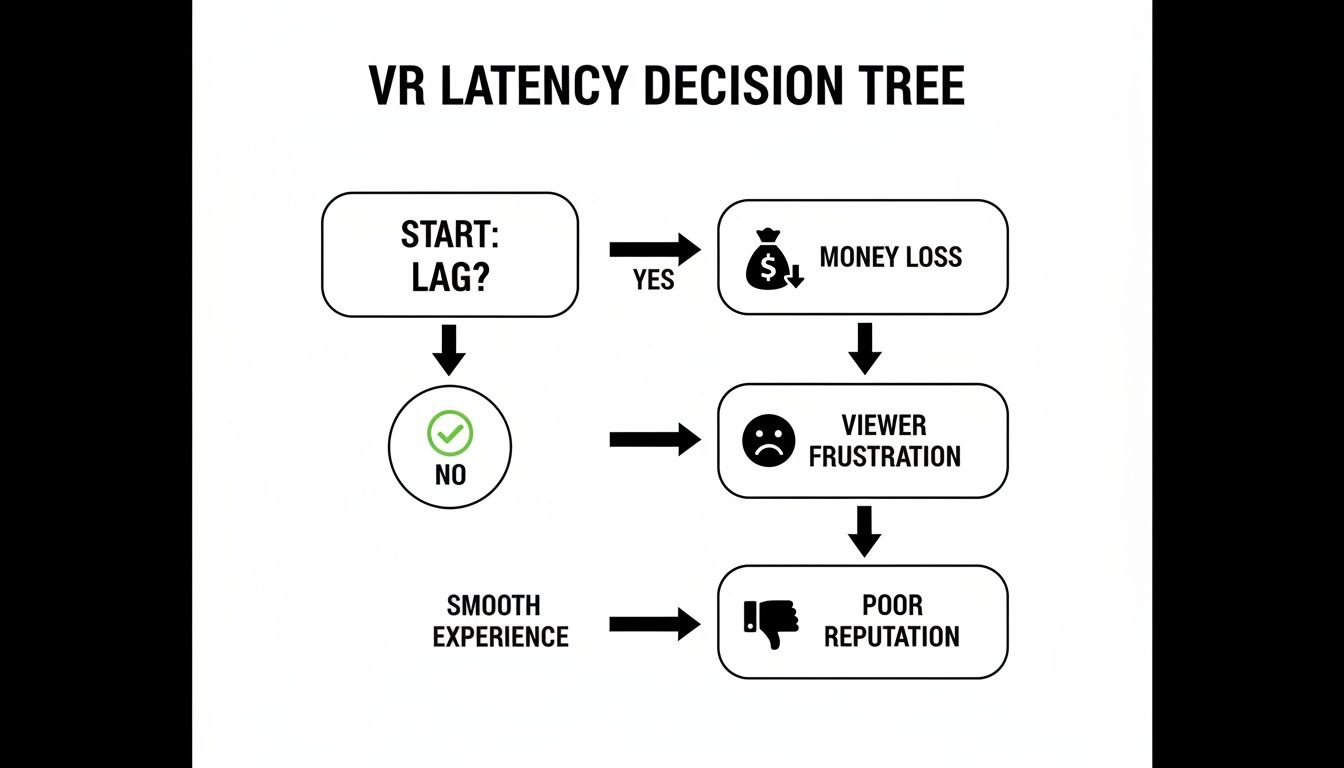
As this flowchart shows, what starts as a small technical hiccup can quickly spiral into viewer frustration and a damaged reputation.
Let's make sure that doesn't happen.
Check Your Connection First
Your internet connection is the foundation of your stream. If it's shaky, nothing else matters. Most people glance at their download speed and call it a day, but for streaming, that’s almost irrelevant. Your upload speed is king.
- Ditch the Wi-Fi: Seriously. Wi-Fi is great for browsing, but it's notoriously unstable for the constant, heavy data upload that streaming requires. Always use a wired Ethernet connection directly from your PC to your router. It's a non-negotiable for stable streaming.
- Run a Proper Speed Test: Go to a reliable speed test site and focus on the upload speed. For a decent quality 1080p VR stream, you want a stable upload of at least 6-10 Mbps. Anything less and you're asking for trouble.
- Identify Bandwidth Hogs: Is someone else in the house streaming 4K Netflix? Are your own devices secretly updating in the background? It’s a good idea to kick everyone else off the network during your stream or use your router's Quality of Service (QoS) settings to prioritise your PC’s traffic.
Scrutinise Your PC and Streaming Software
If your internet is solid, the next suspect is your computer. VR is incredibly demanding on its own; adding streaming on top can bring even a powerful rig to its knees. Luckily, your streaming software (like OBS Studio or Streamlabs) has a built-in dashboard that will tell you if the PC is struggling.
Keep an eye on these key indicators in your software's stats panel:
- Dropped Frames (Network): If this number is climbing, your internet connection can't keep up with your chosen bitrate. Your PC is sending the data, but it's getting lost on the way. The immediate fix is to lower your stream's bitrate in your settings.
- Skipped Frames (Rendering Lag): This means your VR game is hogging the GPU, leaving no resources for your streaming software to render the scene. The solution? Tone down your in-game graphics settings.
- Dropped Frames (Encoding Lag): This is a red flag that your CPU or GPU encoder is overloaded. It simply can't process the video frames fast enough. Try switching to a more efficient encoder (like NVENC if you have a modern NVIDIA card) or lower your output resolution or framerate.
A common mistake is trying to stream at the same high-spec settings you play at. Streaming is a balancing act. You often need to sacrifice a little in-game visual flair for a smooth, watchable broadcast.
Examine Your VR Capture Method
How you get the image from your headset to your streaming software is a major, and often overlooked, source of latency. Not all methods are created equal, and an inefficient setup can add significant delay.
Are you just using your VR platform’s built-in screen mirroring? While simple, tools like the Oculus Mirror or SteamVR's display view can be resource-intensive. They weren't primarily designed for high-performance streaming.
For a much smoother experience, consider a dedicated OBS plugin like the OpenVR Capture plugin. These tools are often far more efficient because they hook directly into the game's rendering process, bypassing extra steps. This can drastically reduce both latency and the performance hit on your system, giving you more headroom to work with.
To help you systematically track down the problem, here's a quick checklist. Work through it from top to bottom to rule out the most common issues first.
Latency Source Diagnosis Checklist
| Check Area | What to Look For | Quick Fix to Try |
|---|---|---|
| Network | Unstable upload speeds, high ping, packet loss. | Switch from Wi-Fi to a wired Ethernet connection. Run a speed test and ensure your upload is at least 6-10 Mbps. |
| Encoder Overload | "Encoding Overloaded!" warning in OBS. High CPU usage. | Switch from x264 (CPU) to a hardware encoder like NVENC (NVIDIA) or AMF (AMD). Lower the encoder preset. |
| GPU Overload | "Rendering Lag" or skipped frames in OBS stats. In-game stutter. | Lower your in-game graphics settings (shadows, textures, anti-aliasing). Cap your in-game framerate. |
| Bitrate Mismatch | "Dropped Frames (Network)" in OBS stats. | Lower your stream's bitrate to a level your upload speed can comfortably support (e.g., 6000 kbps for a 10 Mbps upload). |
| Capture Method | High performance impact from desktop or mirror capture. | Install and use a dedicated plugin like OpenVR Capture for OBS to hook directly into the game's render. |
By following these steps, you’re not just guessing; you’re methodically diagnosing the issue. This approach will save you time, frustration, and help you get back to delivering a high-quality, lag-free VR stream to your audience.
Optimizing Your Gear for Low-Latency Streaming
Right, you’ve played detective and have a rough idea of what’s causing the grief. Now it’s time to get your hands dirty and start tweaking the settings that actually make a difference. This isn’t about buying a whole new rig; it’s about making your existing gear work smarter, not harder, to slash those annoying latency issues in VR streaming.
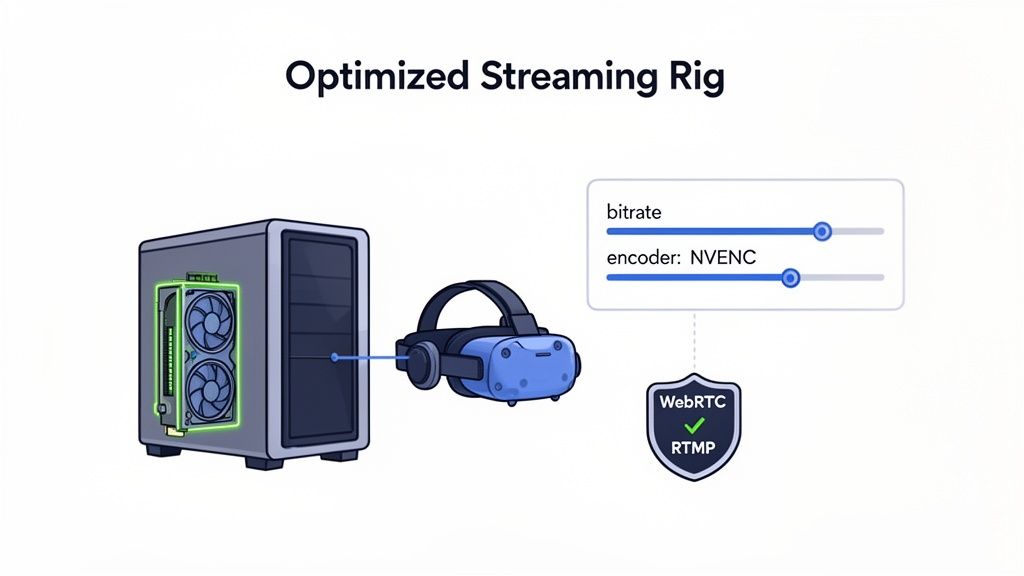
We're moving beyond basic checks into the nitty-gritty configurations that separate a professional stream from an amateur one. Think of this as opening the bonnet of your streaming setup—we’re going to fine-tune the engine for peak performance, ensuring every interaction with your audience feels instant and impactful.
Choose the Right Streaming Protocol
This is probably the single most important technical choice you’ll make. The protocol is the language your stream uses to travel from your PC to your viewers. For years, the standard was RTMP (Real-Time Messaging Protocol), but it's an old dog that simply wasn't built for the instant feedback loop that interactive streaming thrives on.
RTMP often bakes in several seconds of delay by design. In the world of live streaming, that's a lifetime, especially when a fan has just tipped for a specific reaction.
The modern answer is WebRTC (Web Real-Time Communication). It was originally designed for things like video calls, where sub-second latency is completely non-negotiable. If your streaming platform offers a WebRTC option, take it. The difference is night and day; it’s the closest you’ll get to true real-time interaction, making your stream feel alive and incredibly responsive.
Switching from RTMP to WebRTC can cut your end-to-end latency from a painful 5-10 seconds down to less than a second. For a creator whose income depends on instant reactions, this isn't a nice-to-have feature—it's absolutely essential.
Master Your Encoder Settings
Your encoder is the workhorse that compresses your VR gameplay into a video stream. Get this wrong, and you’ll either broadcast a blocky mess or a stuttering, laggy nightmare. The secret is to offload the hard work from your computer's main brain (the CPU) to its specialised graphics brain (the GPU).
- Use Hardware Encoding: In your streaming software like OBS, you'll see encoder options. The default might be
x264, which hammers your CPU. For VR streaming, this is a huge mistake. Instead, you need to choose NVENC (for NVIDIA cards) or AMD VCE/AMF (for AMD cards). This frees up your CPU to actually run the game, drastically reducing encoding lag. - Tweak Your Preset: Hardware encoders come with presets ranging from 'Max Quality' to 'Max Performance'. You want to lean towards performance. For NVENC, starting with the 'Performance' or even 'Low-Latency Performance' preset is a great baseline. Don't be afraid to experiment here.
Getting your encoding right is critical. For a deeper look into the gear that underpins a great stream, it's worth understanding what makes for the best camera for live streaming setups, as many of the same principles around video processing apply.
Dial in Your Bitrate and Resolution
Your bitrate is the amount of data you're sending to the streaming platform every second. Pushing it too high for your internet connection is the number one cause of dropped frames and buffering. But setting it too low makes your stream look like a pixelated soup. The trick is finding that sweet spot.
A solid starting point for a 1080p stream at 60 frames per second (fps) is around 6000 kbps. To be safe, this really needs a stable upload speed of at least 8-10 Mbps. If you see network-related dropped frames in your streaming software, don't hesitate to pull your bitrate back to 5000 or even 4500 kbps.
Don't forget to think about your output resolution, too. While 1080p is the standard, streaming at 936p or even 720p can significantly reduce the load on your encoder and network with a surprisingly minimal loss in quality for the viewer. A smooth 720p stream is infinitely better than a stuttering 1080p one.
The reality for UK creators is that latency isn't just a personal annoyance; it's a market-wide problem. A 2023 study found many VR games in Europe suffer from a lack of post-launch support, leaving streaming-related bugs unaddressed. With the UK gaming population projected to hit 11.56 million by 2027, creators face a discerning audience that won't tolerate lag, especially when it causes motion sickness and discomfort. This can deter up to 80% of repeat views, which is devastating for any subscription-based income.
Advanced Tools for Monitoring Your Stream Health
You can't fix what you can't see. When you're wrestling with the gremlins causing latency issues in VR streaming, the basic "frames dropped" counter in OBS is like trying to do surgery with a butter knife. It tells you that you're bleeding, but not where from or how badly. To truly get a handle on things, you need to graduate from the basics and use the same tools the pros rely on to monitor their stream's health in real time.
This isn't just about watching a number go up or down; it's about gathering intelligence. The right tools paint a clear picture of your stream's entire journey, from your PC to your viewer's headset, helping you pinpoint exactly where delays are creeping in. This proactive approach lets you fine-tune your settings with precision, ensuring a smooth, professional broadcast before you go live and start earning.
Going Beyond the OBS Stats Panel
The stats dock in OBS or Streamlabs is a great starting point, but it only tells part of the story—specifically, what's happening on your machine. To diagnose end-to-end latency, you have to look further down the chain.
Most reputable streaming platforms provide their own creator dashboards loaded with detailed analytics. These are an absolute goldmine because they show you what's happening after your stream leaves your PC. This is where you can see the health of your connection to their servers and get a glimpse into the viewer-side experience.
Key Metrics You Need to Watch
Forget getting overwhelmed by a wall of data. Just focus on the metrics that directly impact latency and the quality of the experience for your audience. Think of these as the vital signs of your stream.
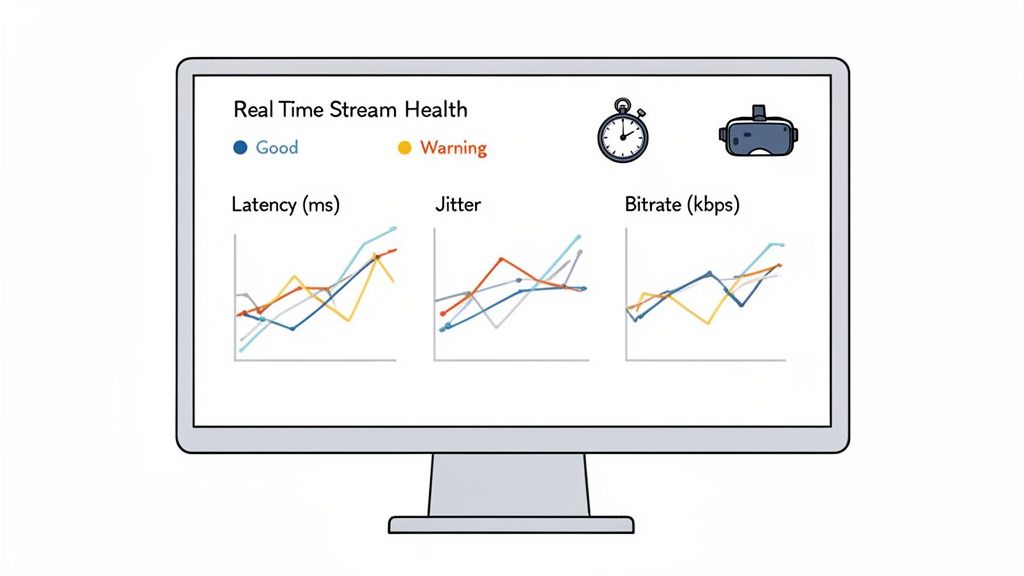
- End-to-End Latency: This is the big one. It measures the total time from when you perform an action in VR to when your viewer sees it happen. Your platform's dashboard is often the only place you can see this figure. For interactive streaming, anything under a second is fantastic.
- Jitter: Think of jitter as the rhythm of your data stream. A high jitter value means data packets are arriving unevenly, which can cause stuttering and buffering even if your average bitrate is fine. A stable, low jitter is a sign of a healthy, consistent connection.
- Bitrate Stability: Instead of just looking at your current bitrate, check out a graph of it over time. Does it spike and crash, or is it a relatively stable line? Wild fluctuations point towards network congestion, either on your end or somewhere upstream.
A common rookie mistake is to obsess over a high bitrate while ignoring stability. A stable 4500 kbps stream is infinitely better for the viewer than a choppy 6000 kbps stream that's constantly fighting your connection.
The Power of a Test Stream
Would you perform on stage without doing a sound check? Of course not. Going live without running a test stream first is the digital equivalent. It's your dress rehearsal, letting you spot problems when no one is watching.
Many platforms offer a way to stream privately or use a special test key. Use this feature religiously. Run a test stream for at least 10-15 minutes while you move around in VR, simulating a normal session. While it's running, have your platform's analytics dashboard open on a second monitor or your phone.
Watch the graphs. Do you see your bitrate dip when you turn your head quickly? Does the latency slowly creep up over time? Interpreting these results lets you make informed tweaks. If you spot bitrate instability, maybe you need to lower it by 500 kbps. If jitter is high, it might be time to restart your router. This simple habit turns a potential on-air disaster into a minor, private technical adjustment.
How High Latency Can Affect Your Privacy and Security
It’s tempting to write off lag as just a technical headache—something that messes up your show’s flow and maybe costs you a few tips. But when you’re dealing with constant, high-latency problems, it can signal something more serious than a bad viewer experience. A shaky, unstable connection isn't just frustrating; it’s a less secure connection. In our line of work, digital safety is non-negotiable.
An unstable stream, constantly dropping packets and suffering from high latency, can be more susceptible to certain online threats. I like to think of a stream as a sealed pipe carrying data from you to your audience. A solid, low-latency connection is a strong, perfectly sealed pipe. High latency? That’s a leaky pipe, full of potential weak spots that could be exploited.
The Link Between Performance and Protection
When your stream is struggling to keep up, it's often a sign your entire network is under strain. This kind of environment can make you a softer target for threats like session interruptions or even sophisticated man-in-the-middle attacks, where someone tries to get between you and the streaming platform to intercept your data. The big platforms have their own security locked down, but a compromised home network is a vulnerability they can’t control for you.
A stable, low-latency connection is a cornerstone of good security hygiene for a few critical reasons:
- Fewer Dropped Sessions: Lag can cause abrupt disconnections that don't terminate properly. While rare, these messy ends can sometimes open up security gaps.
- Less Exposure Time: Smooth, efficient data transfer simply spends less time travelling across the internet, which shrinks the theoretical window of opportunity for anyone trying to intercept it.
- Keeps You Anonymous: A stable connection ensures your privacy tools, like a VPN, are running without a hitch. You don't want it dropping out and accidentally exposing your real IP address for even a second.
Protecting your digital identity is just as crucial as the quality of your stream. It’s why many creators look into robust age verification and identity protection to add another layer of security, creating a strong separation between their online persona and real life.
Why a VPN Becomes Even More Critical
Using a good VPN is just standard practice for any creator who takes their privacy seriously. When your connection is unstable, however, that VPN becomes even more essential. It encrypts all your traffic, acting as your most important privacy shield.
But here’s the catch: a badly configured VPN can introduce its own latency, making your streaming problems even worse. The trick is to use it correctly so it’s a solution, not another problem.
- Pick a High-Speed VPN: This isn't the place to cut corners. Go for a VPN service known for its high-speed servers and minimal impact on performance.
- Connect to a Server Near You: The further your data has to travel to the VPN server and then on to its destination, the more lag you'll get. Always pick a server that is geographically close to you.
- Use Modern VPN Protocols: Look for protocols like WireGuard in your VPN’s settings. They are generally much faster and more efficient than older options like OpenVPN.
At the end of the day, fixing latency issues in VR streaming goes way beyond just keeping your viewers happy and the tips rolling in. It’s about building a professional, resilient, and secure operation from the ground up. A smooth stream is a sign of a healthy, secure connection—and that peace of mind is absolutely priceless.
Your VR Stream Latency Questions, Answered
Let's cut through the noise. When you're wrestling with the technical headache of latency issues in VR streaming, you just want straight answers. I've been there. Here are some of the most common questions I see from creators trying to get their streams buttery smooth.
What’s a Good Latency for VR Streaming?
For the kind of interactive streaming that really connects with an audience, you need to be as close to real-time as possible. The goal you should be aiming for is an end-to-end latency of under one second. That’s the sweet spot where everything feels almost instant and the conversation just flows.
You might get away with a delay between one and five seconds for less interactive, more passive viewing, but once you creep past that, the disconnect becomes painfully obvious. It can completely kill the vibe of a private show or any live session where you're trying to build a rapport.
And don't forget your own comfort. The 'motion-to-photon' latency—the delay inside your own headset—absolutely must be under 20 milliseconds. Any higher, and you're heading straight for a bout of cybersickness, which is the last thing you want to deal with mid-stream. Ultimately, the best test is how it feels to your viewers, not just what a number on a screen tells you.
Will a Faster Internet Plan Magically Fix My Latency?
Not necessarily, and this is a classic trap. When you’re streaming, your upload speed is what truly matters, far more than your download speed. An internet plan that boasts 500 Mbps for downloads but only gives you a trickle of 10 Mbps for uploads is going to struggle. A balanced 100/100 Mbps fibre connection will serve you much, much better.
Latency isn't just about raw speed, either. It’s about the stability and responsiveness of your connection, measured by things like ping and jitter. All the bandwidth in the world won't fix a connection that's constantly dropping packets.
A common mistake is paying for a top-tier "gamer" internet package focused on downloads, while ignoring the upload bottleneck that's actually killing your stream. For creators, upload is king.
Always, and I mean always, plug your PC directly into your router with a proper Ethernet cable. If you can, dive into your router's settings and find the Quality of Service (QoS) feature. Use it to prioritise your streaming PC over everything else on the network. This stops your housemates' Netflix binge from hogging all the bandwidth when you need it most.
Does My Choice of VR Headset Affect Stream Latency?
It absolutely does. How your headset talks to your PC is a massive piece of the puzzle. A headset that’s physically tethered with a high-speed cable—think a Valve Index or a Meta Quest using a quality USB-C Link cable—will almost always give you lower latency. It's a direct, stable pipeline.
Wireless solutions like Air Link or Virtual Desktop are brilliant for freedom of movement, but they add extra steps to the process. Your PC has to encode the video, fire it over your Wi-Fi network, and then your headset has to decode it. Each step adds precious milliseconds of delay and opens you up to Wi-Fi interference from every other device in your house.
For the most reliable, rock-solid, low-latency streaming setup, a wired connection is still the champion.
Is WebRTC Really That Much Better Than RTMP for Low Latency?
Yes, and for interactive streaming, it's not even a fair fight.
Think of it this way: RTMP is an older technology, built for one-way, TV-style broadcasts. It often has a built-in delay of several seconds by design, because its main job is to ensure a stable, buffered stream for a huge, passive audience.
WebRTC, on the other hand, was created specifically for real-time, two-way communication like video calls. It’s engineered from the ground up to achieve sub-second latency, making interactions feel immediate and genuine. This is the tech that powers the instant back-and-forth that makes viewers feel like they're right there with you. If your streaming platform gives you the option to use WebRTC, you should take it. Every single time.