Let’s be honest. Nobody gets into streaming because they love reading dense tech manuals. You're here to create, connect, and maybe make a living. So let's cut the crap and talk about capture cards.
At its core, a capture card is a specialist bit of kit that acts as a translator. It takes the gorgeous video signal from a proper camera (like a DSLR) or a games console and converts it into a digital format your computer can actually use for a high-quality stream or recording. It’s the bouncer that gets your A-list video feed past the velvet rope and into your PC.
What Are Capture Cards and Why Bother?
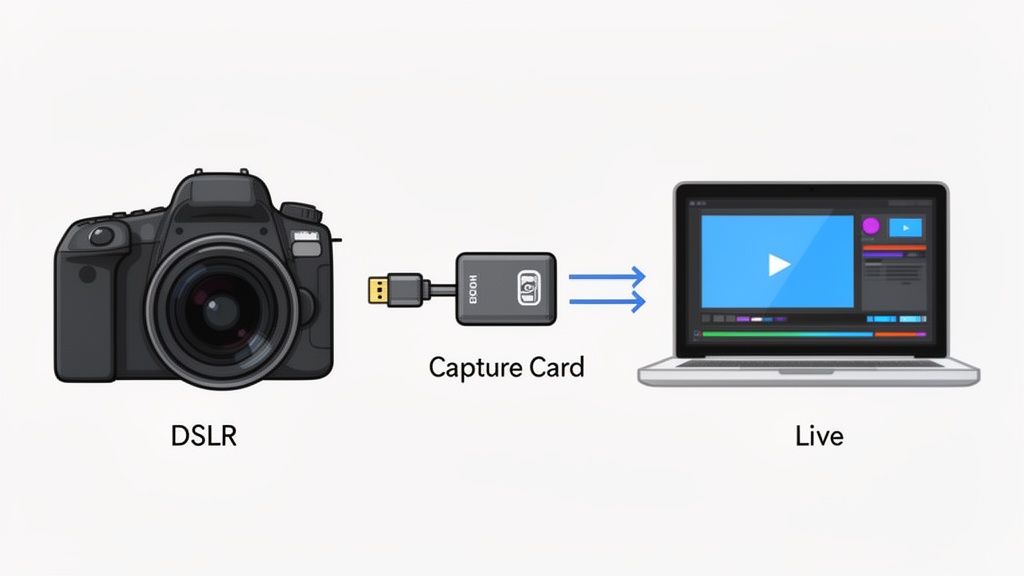
Think of it as the ultimate bridge connecting your best camera to your audience. The main job is to take a clean video feed—usually coming in through an HDMI cable—and pipe it straight into your streaming software, like OBS Studio or Streamlabs. This is the secret to ditching that grainy, built-in webcam for a look that screams professional.
The real magic, though, is how it does the heavy lifting for your computer. Instead of your PC’s main processor (the CPU) getting bogged down trying to run your stream and process a massive high-resolution video feed, the capture card takes on that entire video conversion workload.
This simple act frees up your computer's brainpower, resulting in a much smoother, more stable broadcast with far fewer of those dreaded dropped frames. For anyone in the creator economy, that stability is money.
Capture Card Cheat Sheet
| Concept | What It Really Does |
|---|---|
| Video Input | Grabs the raw video signal from your professional camera or console. |
| Conversion | “Translates” that signal into a language your PC understands. |
| CPU Offload | Takes on the hard work of video processing so your PC doesn’t have to. |
| Output | Feeds a high-quality, reliable video stream into your software (like OBS). |
Ultimately, a capture card is your ticket to a more professional and reliable stream.
The Real-World Difference
So, why is this a non-negotiable bit of gear for any serious creator? It all boils down to two things: production quality and reliability.
- Unlock Professional Cameras: It’s the only proper way to hook up a DSLR or mirrorless camera for live streaming. This is how you get that beautiful, blurred background (known as bokeh) and razor-sharp detail that a standard webcam simply cannot replicate.
- Offload CPU Strain: By taking over the video processing, it ensures your computer can dedicate its resources to running your streaming software smoothly and keeping up with audience interaction, all without stuttering or crashing.
- Enable Complex Setups: It's the critical component for more advanced setups, like a dual-PC streaming rig where one machine is dedicated to gameplay and the other manages the broadcast itself.
This humble piece of hardware has become an absolute staple in the creator economy. It's not just a niche gadget anymore; the global video capture card market was valued at USD 672.36 million in 2023 and is on track to smash USD 1.1 billion by 2032. That massive growth is being driven by the explosion in content creation.
If you're looking to understand the mechanics behind this world, our guide on how webcam sites work offers a great primer on the business side of things.
How a Capture Card Actually Works in Your Setup
So, how does this little box of magic actually fit into your streaming or recording rig? Let's follow the signal from start to finish to see what's really going on. Once you understand the flow, sorting out any little glitches down the line becomes much easier.
Think of it like this: your camera or games console is sending out a clean, high-quality video signal from its HDMI port. That cable plugs straight into the HDMI IN port on your capture card. The card’s main job is to grab that raw feed and translate it into a language your computer understands, sending it over via USB or an internal PCIe slot.
Once it's in your computer, your streaming software – think OBS Studio or Streamlabs – simply sees the capture card as another video source, just like it would a standard webcam. From there, you can drop it into your scenes, resize it, and send it out to the world.
The Passthrough Lifeline
You'll hear the term passthrough thrown around a lot, and for good reason. It’s an absolute game-changer, especially for gamers. The passthrough port is just an HDMI OUT on the capture card. It takes the original video signal and sends it straight back out to a separate monitor, completely untouched.
Why is that so important? It means you can play your game on a dedicated screen with practically zero lag, exactly as if your console was plugged directly into it. At the same time, the captured signal is being sent over to your streaming PC to be broadcast. Without passthrough, you’d be stuck trying to play while looking at the preview in your streaming software, which always has a slight delay. Trust me, that's a recipe for frustration.
Key Takeaway: Passthrough gives you a zero-latency experience for gameplay, while your streaming PC gets the video feed a fraction of a second later. It cleverly separates what you see from what your audience sees.
Latency and Encoding: The Heavy Lifting
Speaking of delays, let's touch on latency. This is the tiny lag between what your camera captures and when it finally shows up in your broadcasting software. A quality capture card keeps this delay to a minimum, ensuring everything feels responsive and in sync.
Even more critically, the capture card handles the initial video encoding. It takes on the tough job of processing that high-resolution video, which lifts a huge weight off your computer's main processor (CPU). This is the secret sauce for preventing dropped frames and keeping your stream buttery smooth, even when the action heats up.
By offloading this work, your PC is free to focus on running the stream, handling overlays, and interacting with your viewers without stuttering. This is why choosing one of the best cameras for live streaming is only half the battle; how you get that signal into your computer is just as crucial.
Here’s a simple diagram that shows the basic idea behind video capture.
This illustrates the journey from an analogue source, through the digitisation process, to a compressed digital video. That conversion is precisely what a capture card does – it’s the essential bridge between the world your camera sees and the digital stream your audience enjoys.
Choosing Your Weapon: Internal vs. External Cards
When you start digging into the world of capture cards, you'll quickly find they come in two main flavours: internal and external. Deciding which one is right for you isn't about finding the "best" card overall, but finding the best fit for your specific setup, your comfort level with PC hardware, and of course, your budget.
This choice is a big deal because it directly shapes how you'll work. Let's break down the two contenders.
The Internal Powerhouse: PCIe Cards
Internal capture cards, also known as PCIe cards, are the real heavy-hitters. These are circuit boards that you install directly into a spare PCIe slot on your desktop computer’s motherboard. Think of it like giving your PC a new, specialised organ—it becomes a fully integrated part of the system.
Because they plug straight into the motherboard's high-speed expressway, they offer blisteringly fast data transfer. The result? The lowest possible latency. That’s the miniscule delay between what your camera or console outputs and what shows up in your streaming software. For a professional-grade setup where every millisecond counts, this near-instantaneous feedback is a massive win.
But they do have their quirks:
- Desktop Only: You absolutely need a desktop PC with an available PCIe slot. Laptops simply can't accommodate them.
- Some Assembly Required: You need to be comfortable opening up your PC case to install the card. It's not rocket science, but it can be a bit intimidating if you've never done it before.
- Not Built for Travel: Once it's installed, it's pretty much a permanent fixture. You can't just grab it and go.
This diagram shows the basic journey your video signal takes, whether the card is internal or external.
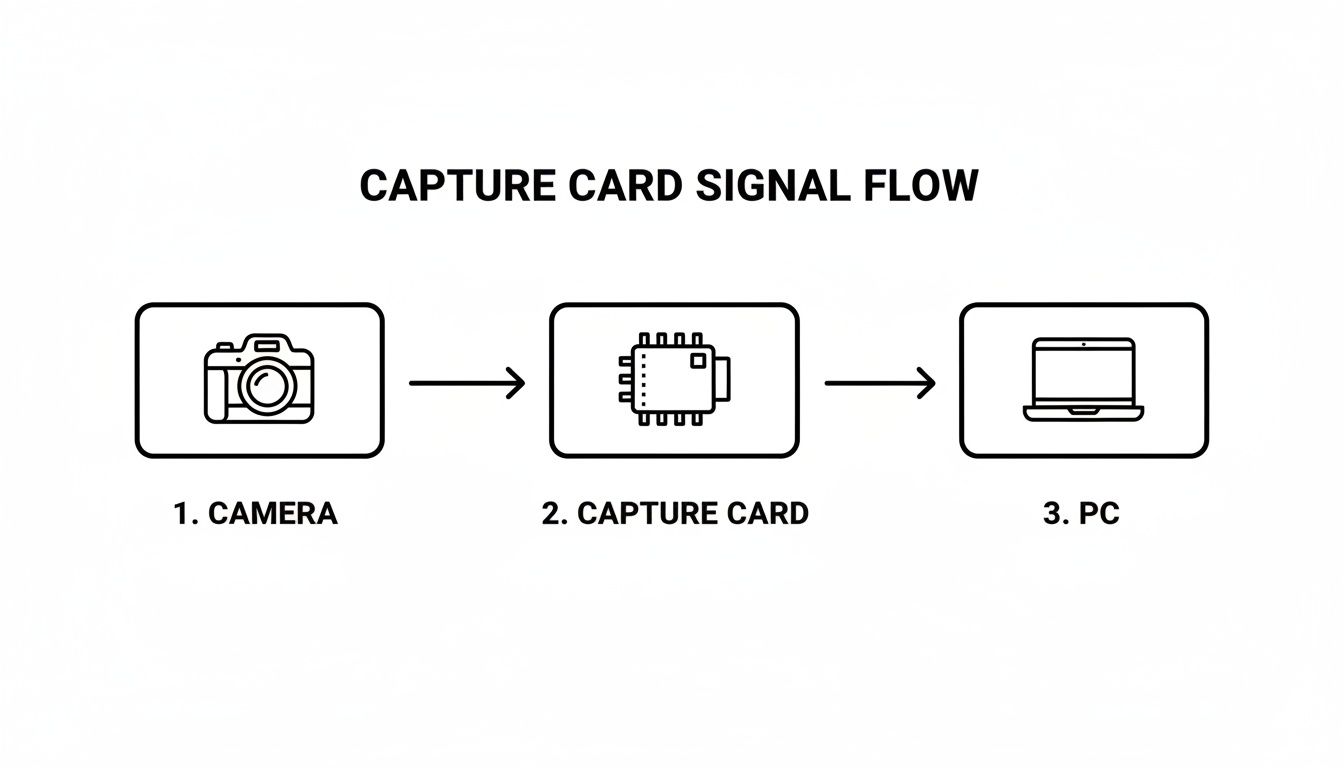
The key difference between the two types is how that final, processed signal gets from the card into your computer.
The Plug-and-Play Hero: External Cards
External capture cards are the user-friendly champions of the content creation world. These are compact, self-contained boxes that connect to your computer with a simple USB or Thunderbolt cable. They are the very definition of plug-and-play.
This simplicity makes them incredibly popular, especially for creators using laptops or anyone who'd rather not perform surgery on their PC. Portability is their superpower; you can toss one in your bag with a laptop and be ready to stream from almost anywhere. Don't mistake convenience for weakness, though—modern external cards running on USB 3.0 or Thunderbolt are beasts, capable of capturing crisp 1080p and even 4K footage with impressively low latency.
The market for this kind of flexible gear is booming. In the UK alone, the capture card market was valued at USD 17.26 million in 2024 and is projected to more than double by 2033. You can explore more data on the UK market trends at Deep Market Insights.
The Trade-Off: While incredibly convenient, external cards can introduce a fraction more latency than their internal siblings. For the vast majority of streamers and creators, this tiny delay is completely unnoticeable. However, for elite-level competitive gamers, that sliver of an advantage offered by an internal card might just be the deciding factor.
Internal vs. External Capture Card Showdown
To make the choice crystal clear, let's put them head-to-head. This table breaks down the key differences to help you decide which one slots best into your workflow.
| Feature | Internal (PCIe) Card | External (USB/Thunderbolt) Card |
|---|---|---|
| Performance | The lowest possible latency due to direct motherboard connection. Ideal for pro-level gaming. | Very low latency on modern devices, but can be slightly higher than PCIe. Excellent for most uses. |
| Compatibility | Desktop PCs only. Requires an available PCIe slot. | Works with both desktops and laptops via USB or Thunderbolt. |
| Installation | Requires opening your PC case. Can be intimidating for beginners. | True plug-and-play. Just connect the cables and you're ready to go. |
| Portability | Fixed inside your PC. Not portable. | Highly portable. Easy to move between computers or take on the road. |
| Clutter | Hides inside your PC case, keeping your desk tidy. | An extra box and cables on your desk. |
| Cost | Can be slightly more expensive for high-end models. | Wide range of prices, often with more budget-friendly options available. |
So, what's the verdict? If you're a desktop user who demands the absolute lowest latency and you're comfortable with a bit of DIY, an internal PCIe card is a fantastic, powerful choice. But if you value flexibility, use a laptop, or just want a hassle-free setup, a modern external capture card is an incredibly capable and convenient solution that will serve you well.
Why This Is Your Next Must-Have Piece of Gear
Let’s be real for a moment. A capture card isn't just another shiny gadget to add to your collection; it's the piece of kit that draws a line in the sand between an amateur setup and a professional broadcast. It’s what separates the hobbyists from the serious creators.
The biggest game-changer? It finally lets you use a proper DSLR or mirrorless camera as your webcam. Suddenly, that flat, grainy webcam look is gone, replaced by a polished, studio-quality feed. You get that beautiful, cinematic blurred background (the bokeh effect) that everyone loves.
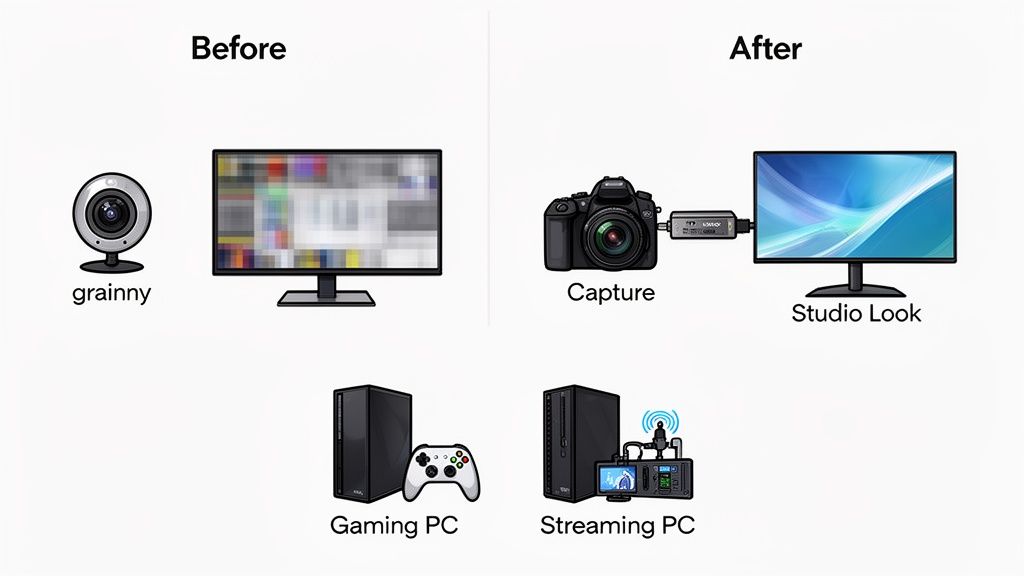
This isn't just about vanity. It's about how your audience perceives you. A high-quality visual presentation tells them you're professional and dedicated, which can make a massive difference in attracting and keeping viewers—and their tips.
The Power of the Dual-PC Setup
For creators who also game, a capture card is the secret to unlocking the holy grail of streaming: the dual-PC setup. It’s a simple but brilliant concept. You have one beast of a PC dedicated to running your game at max settings, giving you a completely lag-free experience.
The video feed from that gaming PC then runs into a capture card on a second, dedicated streaming PC. This second machine does all the heavy lifting—encoding the stream, running your overlays, managing alerts, and handling chat.
By splitting the workload, you make sure neither your gameplay nor your stream quality ever takes a hit. Your viewers get a buttery-smooth broadcast, and you get to play without dropping a single frame. It's the ultimate win-win.
Beyond Live Streaming
But a capture card is so much more than a live streaming tool. It’s a powerhouse for creating high-quality, pre-recorded videos for platforms like YouTube or Fansly. By grabbing the raw, uncompressed video feed directly from your camera or console, you get total control over the final product.
You can record footage at the highest possible quality, then take it into your editing software to colour-grade, add effects, and cut it together perfectly. You're no longer limited by what your streaming software can do. This opens the door to producing polished, evergreen content that keeps attracting viewers and earning for you long after a live stream ends. If you're looking to streamline your process further, have a look at our guide on finding a Stream Deck alternative.
The demand for high-quality creator gear is booming, and it's easy to see why. Recent market analysis shows that in the UK, daily digital entertainment consumption soared to 8.8 hours per day in 2025. With online video subscriptions now in 88% of internet-connected homes, the bar for quality has never been higher. You can read the full UK market research here to see just how much the landscape has changed.
Ultimately, investing in a capture card is an investment in your brand. It gives you the technical backbone to create content that looks and feels premium, helping you stand out and giving you the best shot at turning your passion into a career.
How to Choose a Capture Card Without Buyer's Remorse
Alright, let’s stop you from wasting money. Picking a capture card can feel like wading through a swamp of acronyms and confusing specs, but getting it right is simpler than you think. It really comes down to asking the right questions before you even start browsing.
The goal here isn't to find the "best" card on the market, but the best one for your specific setup and your ambitions. A £400 4K monster is completely pointless if all you need is a crisp 1080p feed from your mirrorless camera. Let’s make sure you invest in a tool that works for you, not one that gathers dust in a drawer.
Start with Your Streaming Goals
First things first: what resolution and frame rate do you actually need? For most creators streaming to platforms like Twitch, YouTube, or adult sites, 1080p at 60 frames per second (fps) is the absolute gold standard. It’s sharp, smooth, and what the majority of your viewers can comfortably watch.
Don't get seduced by the 4K hype unless you have a very specific reason for it. Are you recording ultra-HD content for a YouTube channel or a high-end subscription platform where people will actually be watching in 4K? If not, a solid 1080p/60fps card will deliver stunning quality without the headache of massive file sizes and heavy processing demands.
Check Your System Compatibility
This is the number one source of frustration and returns. A capture card has to play nice with your computer and your software, so let's run a quick compatibility check.
- PC or Mac? This is a bigger deal than you might think. Not all cards have drivers for both operating systems, so always double-check the manufacturer’s website for macOS support. Sometimes it's an afterthought.
- Desktop or Laptop? If you're on a desktop with a spare PCIe slot, an internal card is a clean, powerful option. For everyone else, especially laptop users, you’re firmly in the external USB or Thunderbolt camp.
- What Ports Do You Have? Look at your computer. For an external card, you absolutely need at least a USB 3.0 port (they're usually blue) for reliable performance. An older USB 2.0 port simply doesn't have the bandwidth for high-quality video, which will result in a choppy, unusable signal.
Match the Card to Your Camera
Finally, think about what you're plugging into it. Are you connecting a high-end DSLR, a mirrorless camera, or maybe a games console? Almost every modern device uses an HDMI output, which makes things easy.
Crucial Tip: The most important thing is ensuring your camera has a "clean HDMI out." This just means the camera sends only the video image, without all the distracting on-screen clutter like battery life or focus boxes. Most DSLRs and mirrorless cameras made in the last five years have this, but you should always verify it for your specific model before buying anything.
Answering these simple questions will narrow down your options dramatically. It helps you focus on the capture cards that are a perfect fit for your creative workflow and avoid the ones destined to become expensive paperweights.
Troubleshooting: What to Do When Things Go Wrong
Even the best gear has its off days. When your capture card decides to play up—usually right before you're about to go live—it’s maddening. But don’t tear your hair out just yet; most of these problems are actually pretty simple to sort once you know what to look for. Think of this as your field guide to the most common capture card frustrations.
Let's start with the big one: the dreaded black screen in OBS. You've connected everything, but all your software shows is a black hole where your video feed should be. This is almost always down to a signal or settings mismatch.
The Infamous Black Screen
When OBS, Streamlabs, or any other software gives you nothing but a black screen, take a breath. Before you start unplugging every cable in sight, run through this quick mental checklist.
- Is it the right source? Double-check that you've actually selected the capture card as the video source in your scene. It's a simple oversight we've all made.
- Resolution clash: The output resolution from your console or camera must match the resolution you’ve set for the capture card source in your software (e.g., 1920×1080). If they don't line up, you'll get nothing. This is the top culprit, time and time again.
- Got enough power? Your card needs to be plugged into a high-speed USB 3.0 port, which are usually coloured blue. An older USB 2.0 port simply doesn't have the bandwidth to carry the video signal, leading to a blank screen or connection drops.
- The classic reboot: You'd be surprised how often "turning it off and on again" works. Shut down your streaming software completely, unplug the capture card, plug it back in, and then relaunch your software.
Pesky Audio Sync Issues
Another classic headache is audio drift. This is when your voice and your on-screen lip movements gradually fall out of sync over a long stream, making it look like you're in a badly dubbed kung-fu movie.
It's usually because your audio (from your mic) and your video (from the capture card) are being processed at slightly different speeds. The fix is thankfully quite simple and lives inside your streaming software’s advanced audio properties. You can apply a Sync Offset in milliseconds (ms), which adds a tiny delay to your microphone audio so it lines up perfectly with the slightly-delayed video feed. Start with a value around 250ms and tweak it from there until it looks spot on.
Pro Tip: If you're hearing weird audio crackling or pops, particularly on macOS, it could be a software conflict. Some power users have fixed this by rolling back to older versions of FFmpeg (a core component of OBS), but for most of us, the best first step is much simpler: make sure your capture card drivers and OBS are fully up to date.
Frequently Asked Questions
Let's tackle some of the common questions that pop up right before you hit the "buy" button on a capture card. Here are the straight-up answers you're looking for.
Do I Really Need a Capture Card for My DSLR?
In almost every case, yes. It's true that some cameras can pipe video over a USB cable, making them act like a webcam. But that connection is often a highly compressed, lower-quality feed that also puts an extra burden on your computer's processor.
A capture card, on the other hand, grabs the camera's clean HDMI output. This gives you a dedicated, uncompromised video signal that's rock-solid. It’s the difference between a clunky workaround and a truly professional setup.
Will a Capture Card Improve My Internet Speed?
Nope, not at all. A capture card has absolutely zero to do with your internet connection. Its job is to process the video from your camera or console before that video ever touches the internet.
Think of it this way: the capture card improves the quality of the parcel you're sending, but it doesn't change the speed of the delivery van. You'll still need a good, stable upload speed to get that beautiful high-quality stream out to your audience without a hitch.
Is an Expensive 4K Capture Card Worth It for Streaming?
For most streamers, a 4K card is probably overkill right now. The vast majority of live streaming platforms, like Twitch, broadcast at a maximum of 1080p. A good quality 1080p capture card will deliver a stunningly crisp image that your viewers can actually watch.
So, when does 4K make sense? Invest in a 4K card if you're simultaneously recording your gameplay or footage for YouTube videos, where people can appreciate the full 4K resolution. It's also a smart move if you want to future-proof your setup for the next few years as streaming technology continues to evolve.